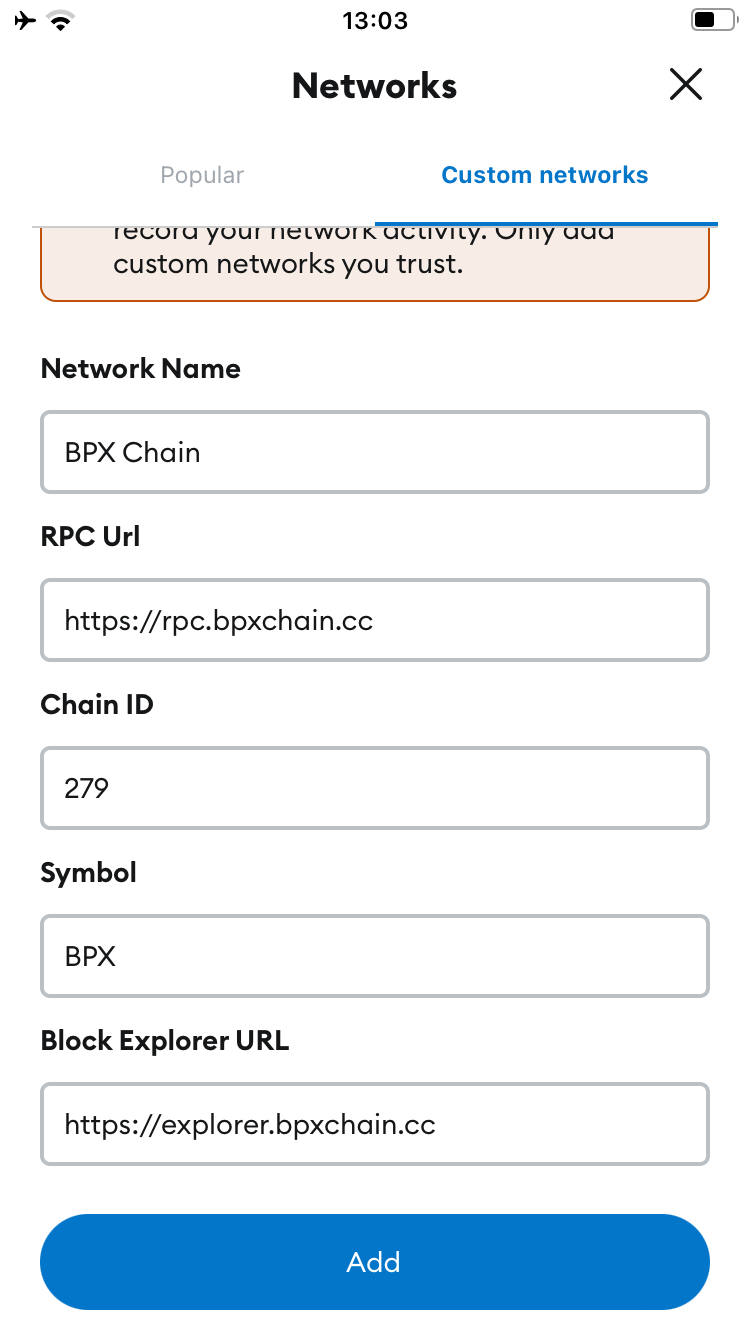
**Network name:** BPX Chain **Default RPC URL:** https://rpc.bpxchain.cc **Chain ID:** 279 **Currency symbol:** BPX **Block explorer URL:** https://explorer.bpxchain.cc
[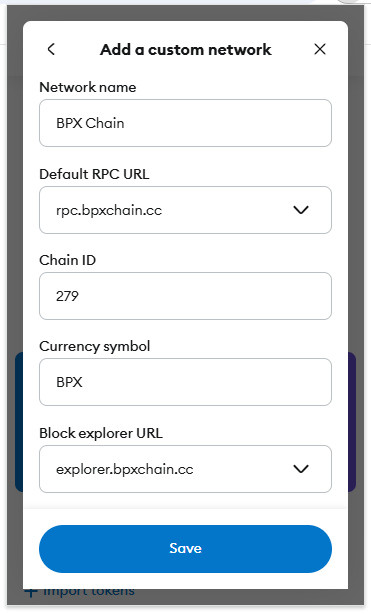](https://docs.bpxchain.cc/uploads/images/gallery/2024-11/P8gyyjhTXWdWYgYP-metamask-chrome3.jpg) 4\. You should see a success notification. Expand the list of available networks again. [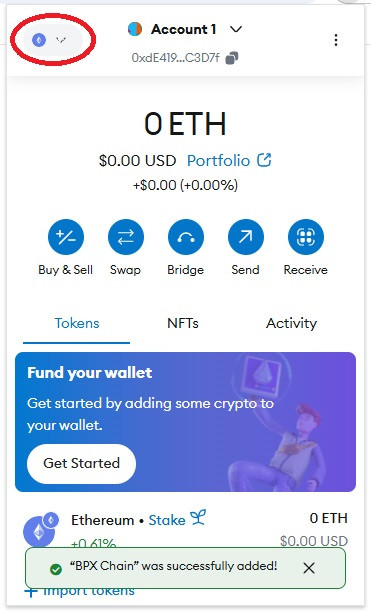](https://docs.bpxchain.cc/uploads/images/gallery/2024-11/7SPJPUEZkch2btLH-metamask-chrome4.jpg) 5\. Select "**BPX Chain**", which should now be on the list. [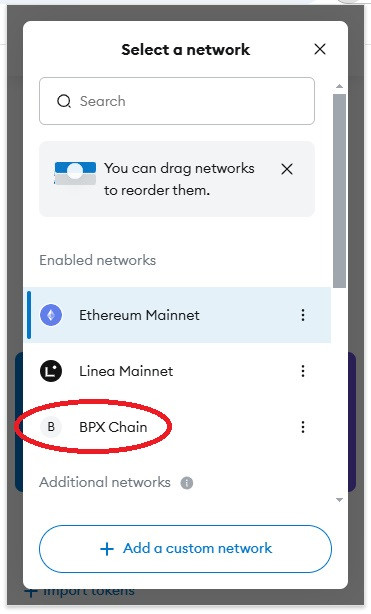](https://docs.bpxchain.cc/uploads/images/gallery/2024-11/5JJJeOcEXSjXjv9K-metamask-chrome5.jpg) 6\. Your wallet is now ready to use. [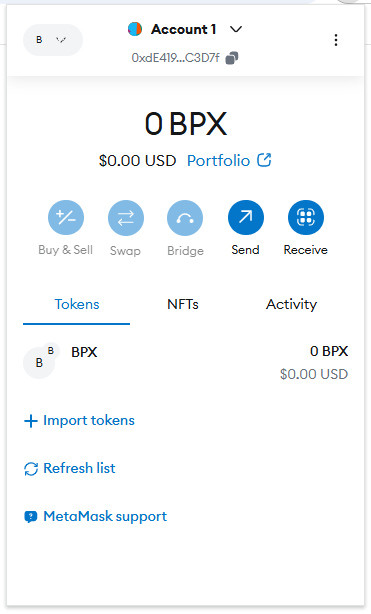](https://docs.bpxchain.cc/uploads/images/gallery/2024-11/HcYDTdkBXa7Zklch-metamask-chrome6.jpg) # Setting up Metamask wallet for BPX Chain (Mobile app) 1\. Open **MetaMask**. Expand the list of available networks. [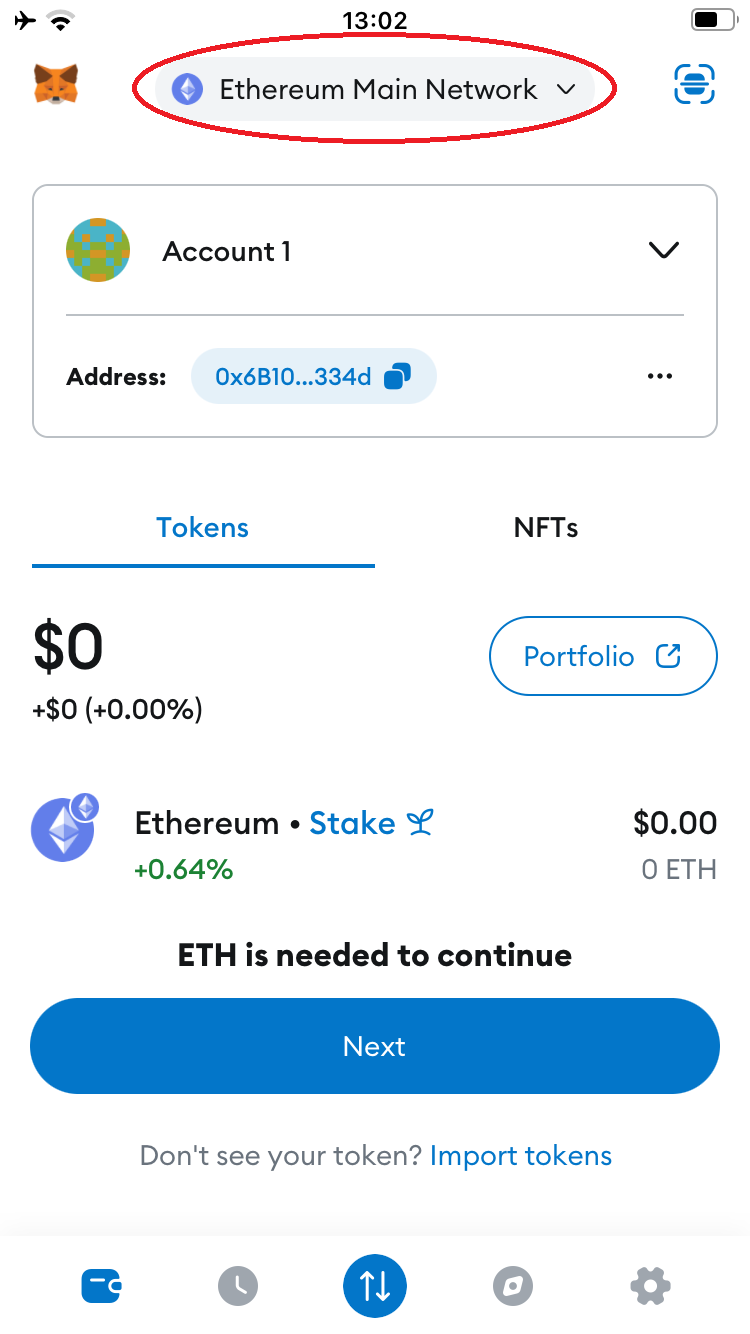](https://docs.bpxchain.cc/uploads/images/gallery/2024-11/ejwhE9hEqRIAa2PB-metamask-mobile1.PNG) 2\. Select "**Add Network**". [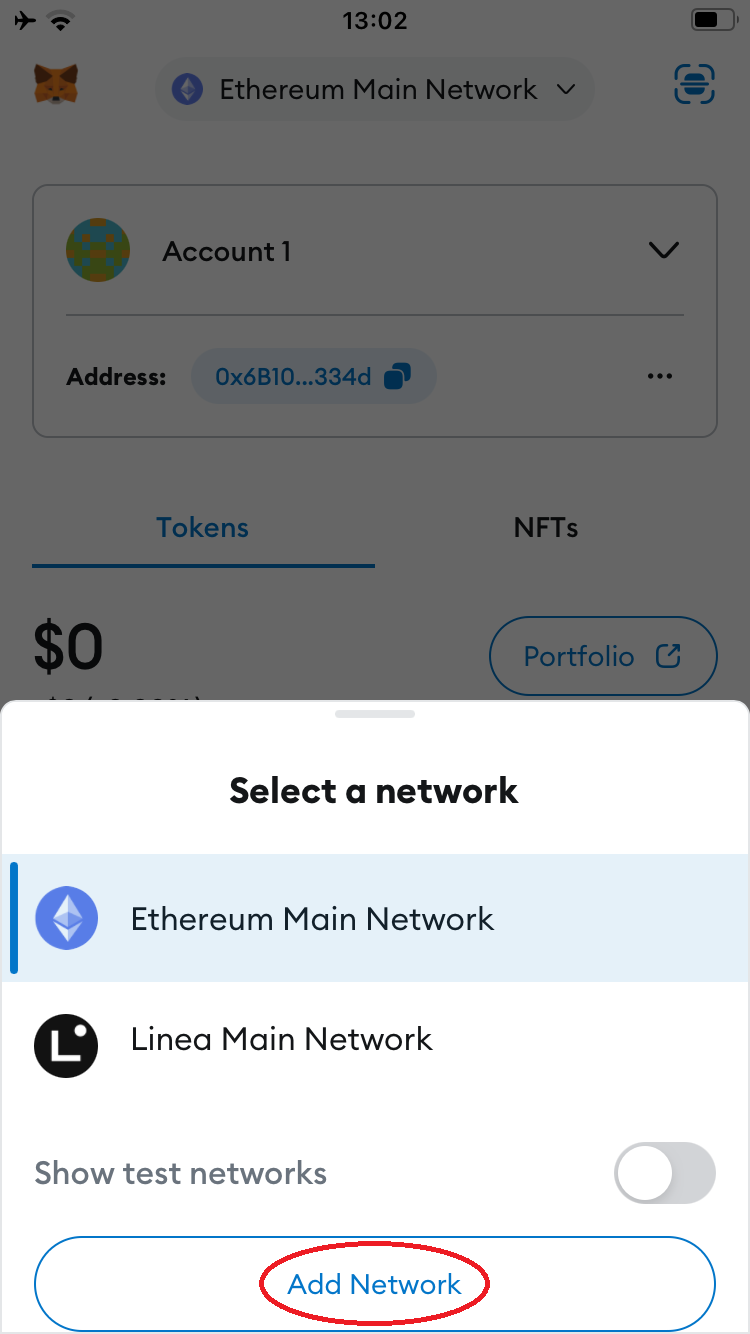](https://docs.bpxchain.cc/uploads/images/gallery/2024-11/of3ZP46xQOyHIC1A-metamask-mobile2.PNG) 3\. Go to the "**Custom networks**" tab.**Network name:** BPX Chain **Default RPC URL:** https://rpc.bpxchain.cc **Chain ID:** 279 **Currency symbol:** BPX **Block explorer URL:** https://explorer.bpxchain.cc
[](https://docs.bpxchain.cc/uploads/images/gallery/2024-11/TwwSjQo1AA8gN70a-metamask-mobile4.PNG) 5\. Proceed through the next steps by tapping "**Confirm**", "**Switch to network**", and "**Got it**". [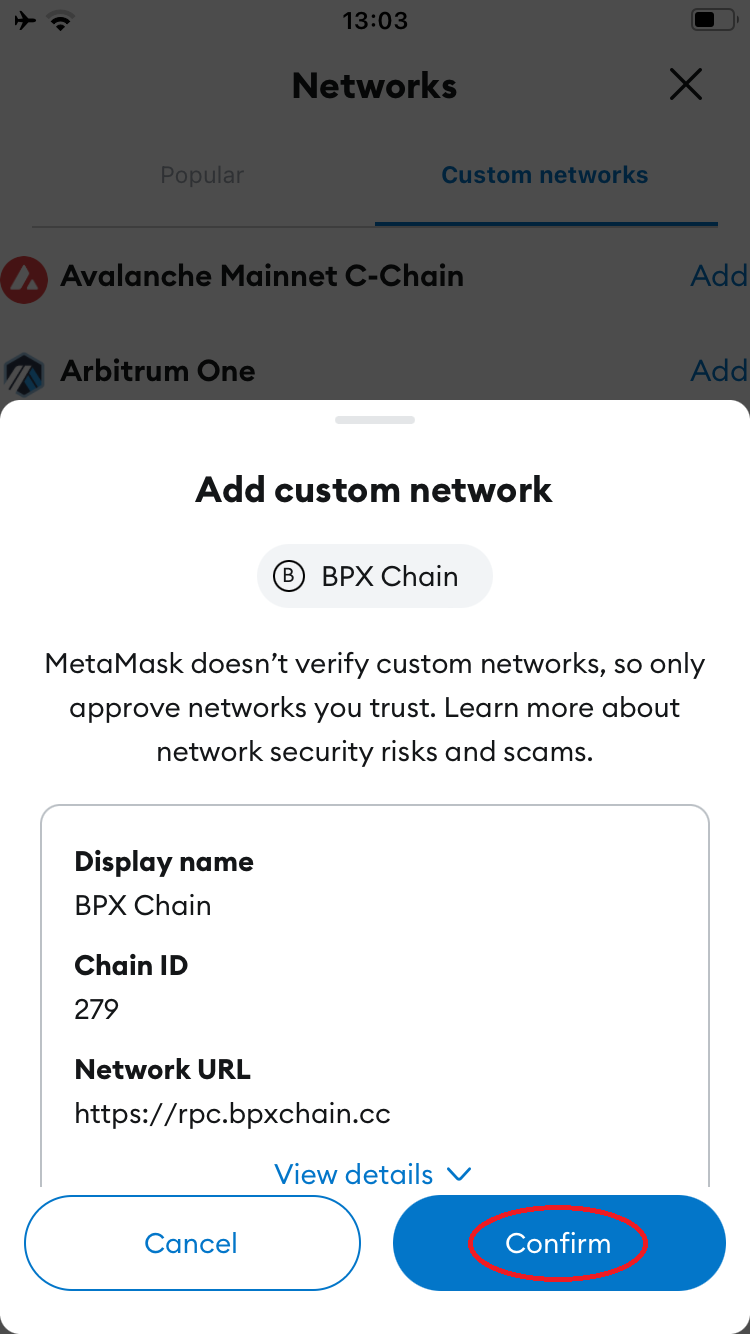 ](https://docs.bpxchain.cc/uploads/images/gallery/2024-11/v6m41dIdTYh8Wd68-metamask-mobile5.PNG)[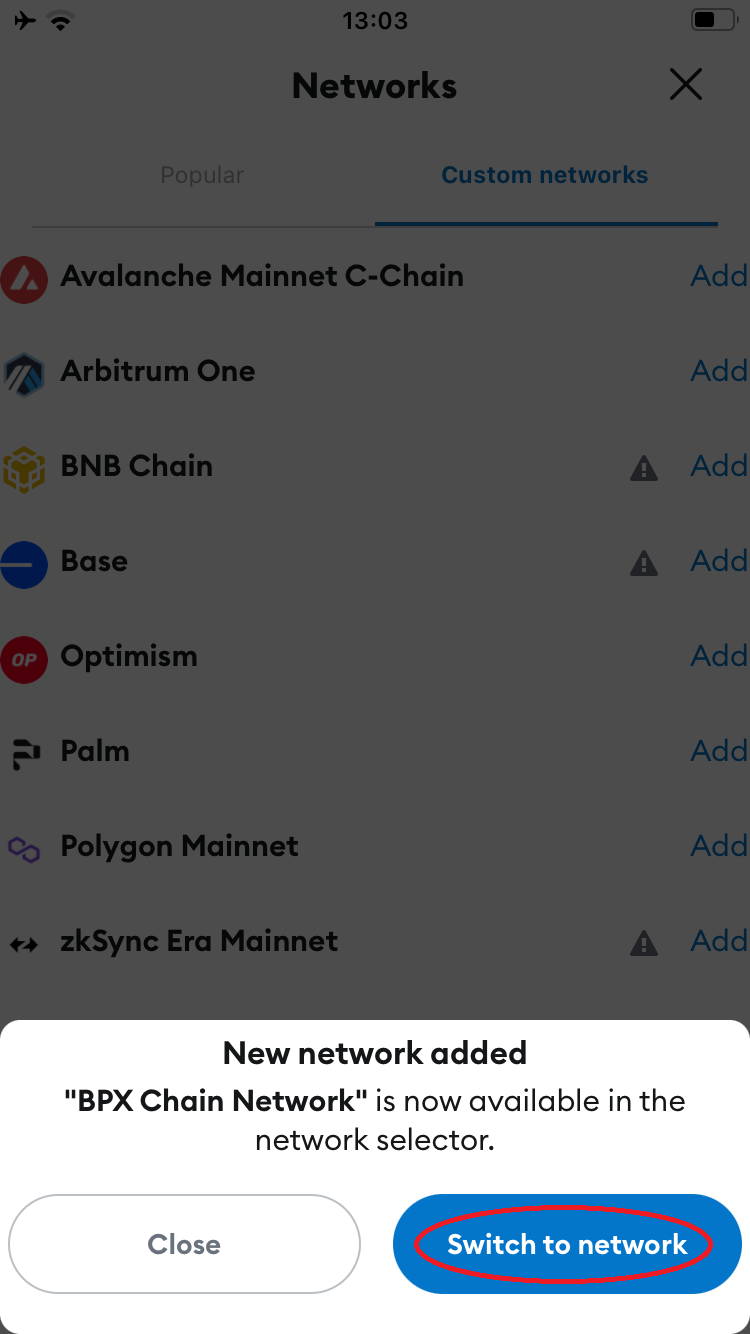 ](https://docs.bpxchain.cc/uploads/images/gallery/2024-11/FzoiqPrQeYFEvuHk-metamask-mobile6.PNG)[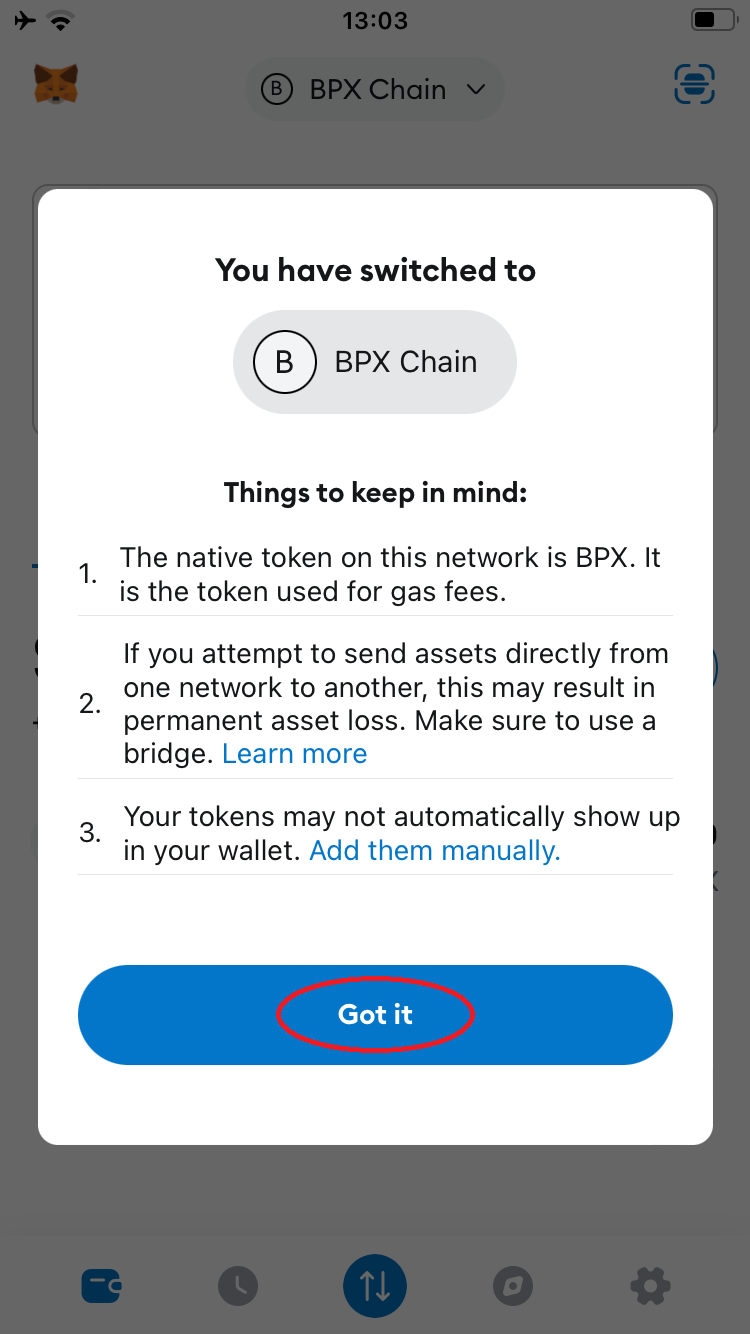](https://docs.bpxchain.cc/uploads/images/gallery/2024-11/zTp33wAFcgYrSLDK-metamask-mobile7.PNG) 6\. Your wallet is now ready to use. [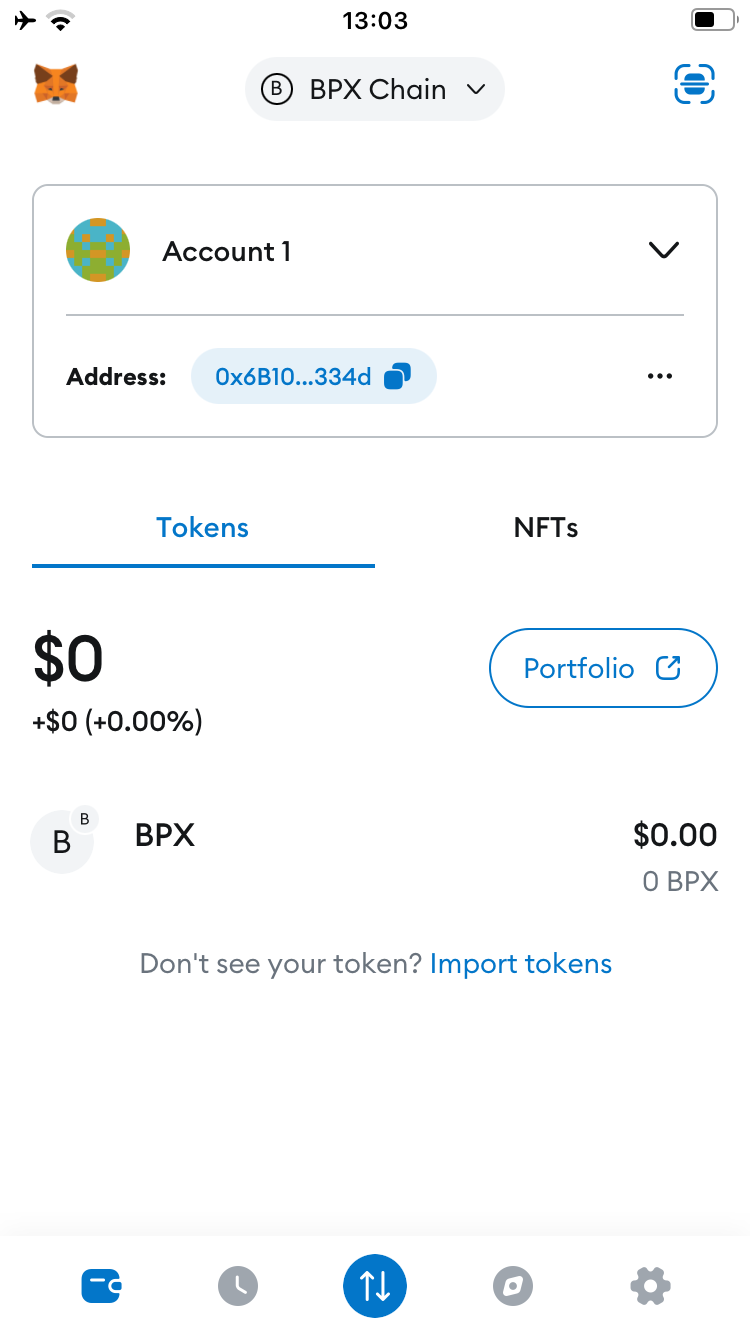](https://docs.bpxchain.cc/uploads/images/gallery/2024-11/AhCXbhwtI9K1BGBT-metamask-mobile8.PNG) # Installing and running BPX full node on Windows 1\. Download the EXE installers for the latest releases of the **[Execution Client](https://github.com/bpx-chain/bpx-execution-client/releases)** and **[Beacon Client](https://github.com/bpx-chain/bpx-beacon-client/releases)**. 2\. Run the **Execution Client** installer first. Depending on your Windows version, different warnings may appear. In these cases, click "**More info**", then select "**Run anyway**", and "**Yes**". [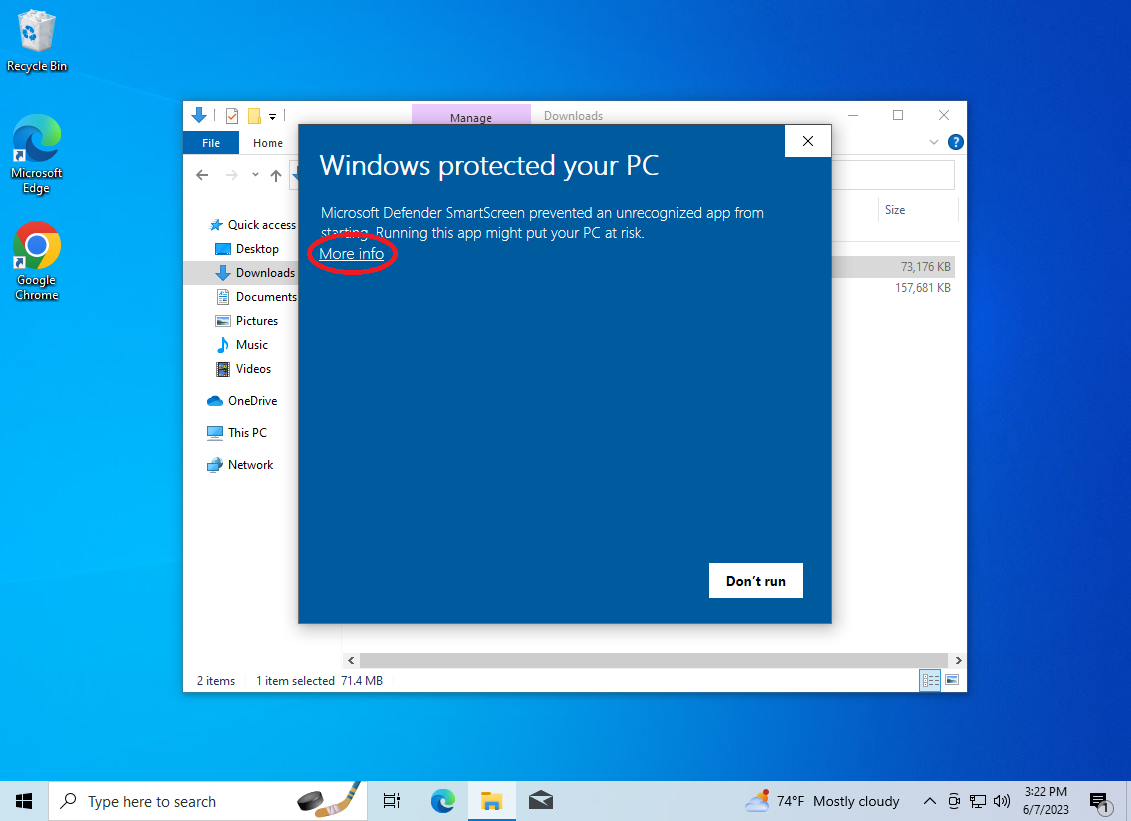](https://docs.bpxchain.cc/uploads/images/gallery/2023-06/cN3FCMRV0dXWVPsB-virtualbox-win10-07-06-2023-15-22-29.png) [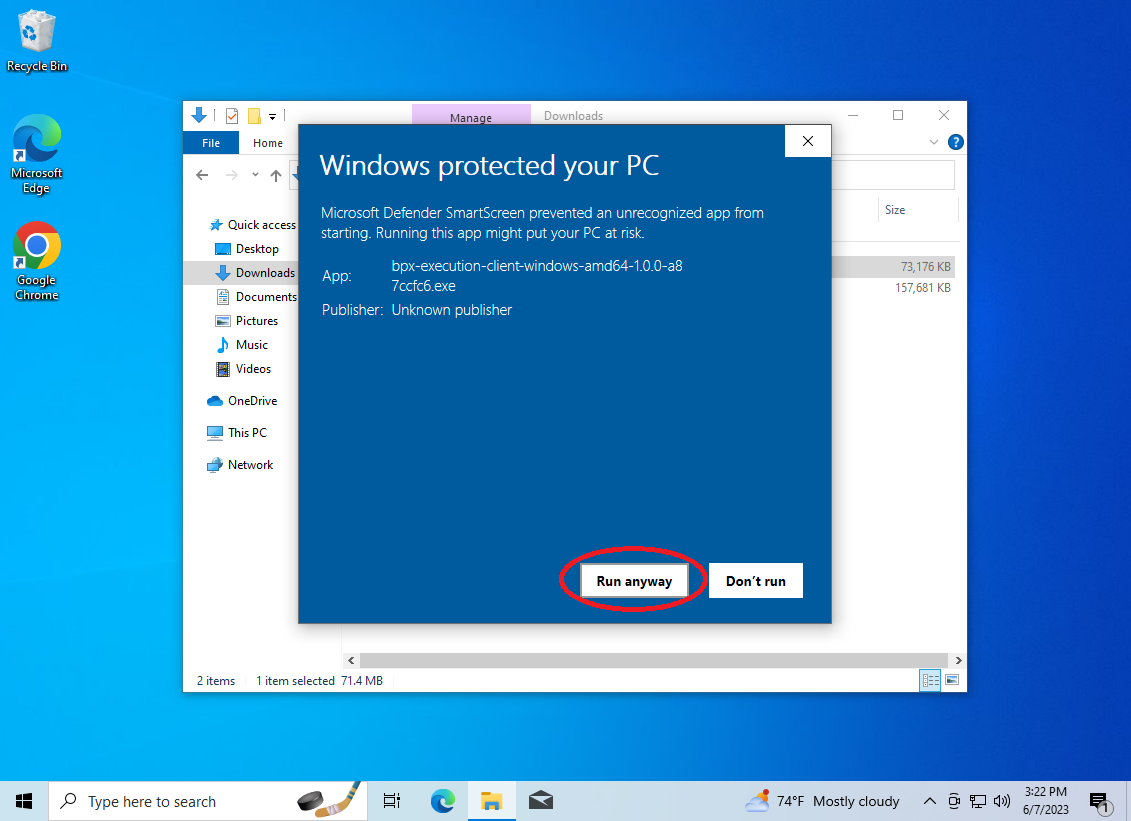](https://docs.bpxchain.cc/uploads/images/gallery/2023-06/qr3rt2trR5P6HWWF-virtualbox-win10-07-06-2023-15-22-58.png) [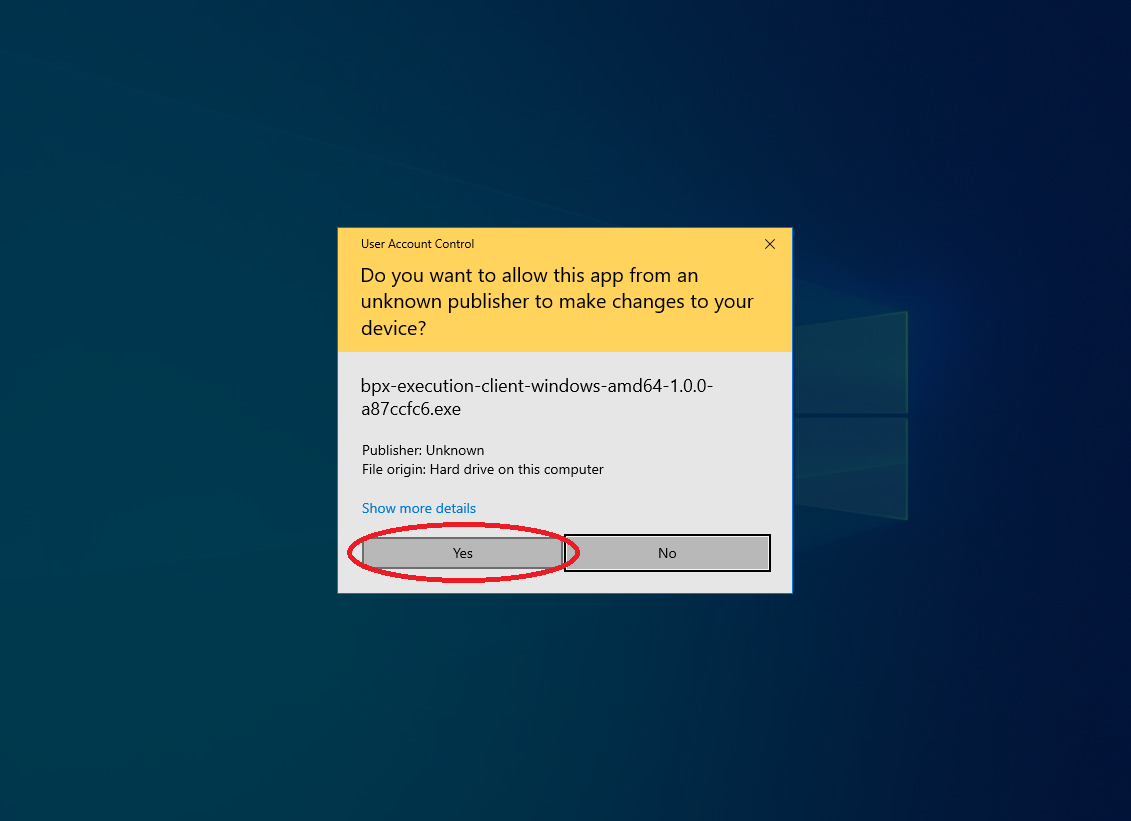](https://docs.bpxchain.cc/uploads/images/gallery/2023-06/iuS3vkSWjBvKYD86-virtualbox-win10-07-06-2023-15-24-22.png) 3\. Follow all the installer steps by clicking "**I Agree**", "**Next**" and "**Install**". Once the installation process is complete, close the installer. [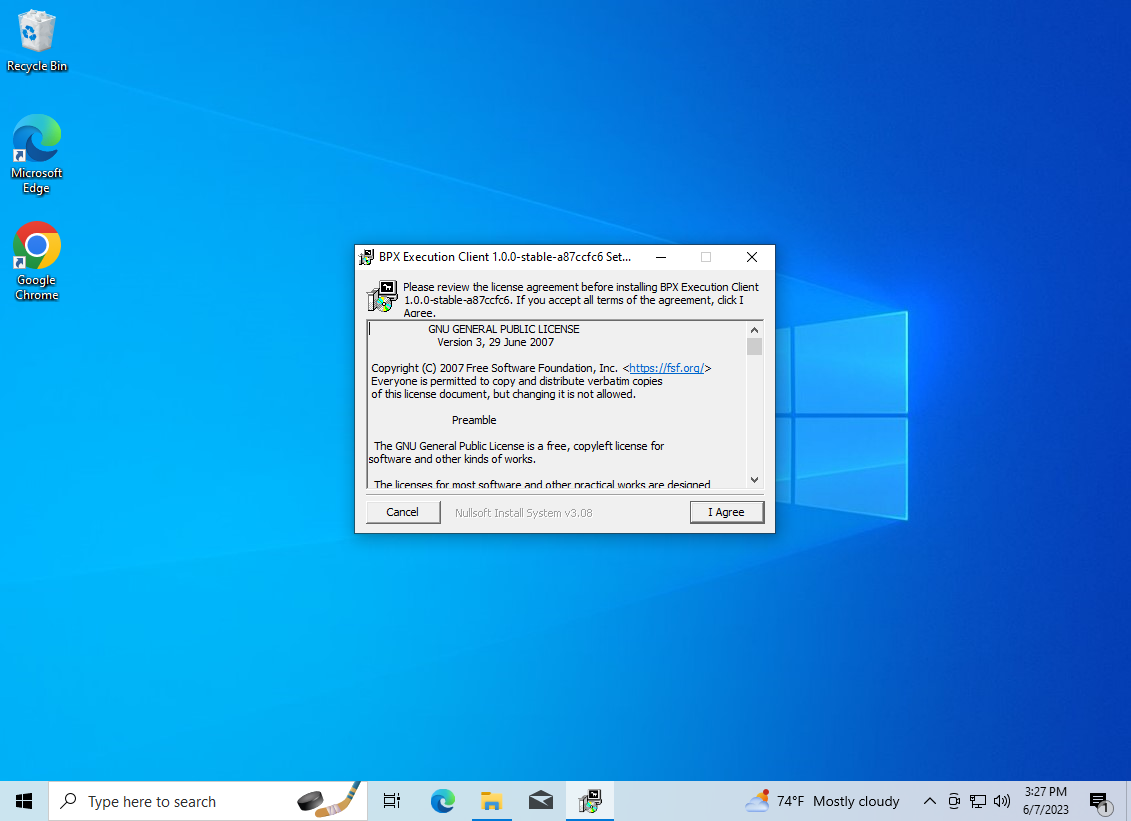](https://docs.bpxchain.cc/uploads/images/gallery/2023-06/xuphBC6JFF7Al8Lb-virtualbox-win10-07-06-2023-15-27-05.png) [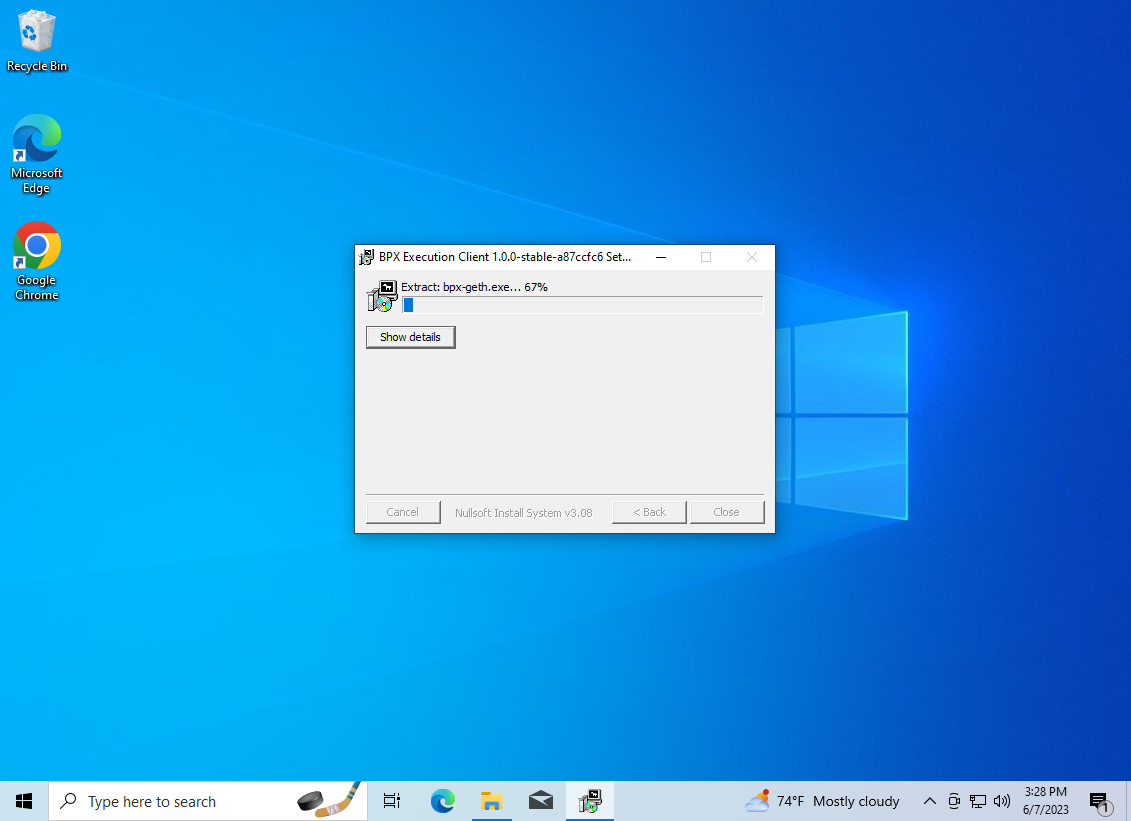](https://docs.bpxchain.cc/uploads/images/gallery/2023-06/ENqEJfOTTI8xQ7cN-virtualbox-win10-07-06-2023-15-28-06.png) 4\. A shortcut to the **BPX Execution Client** will be created in the Start Menu. Launch it from there. [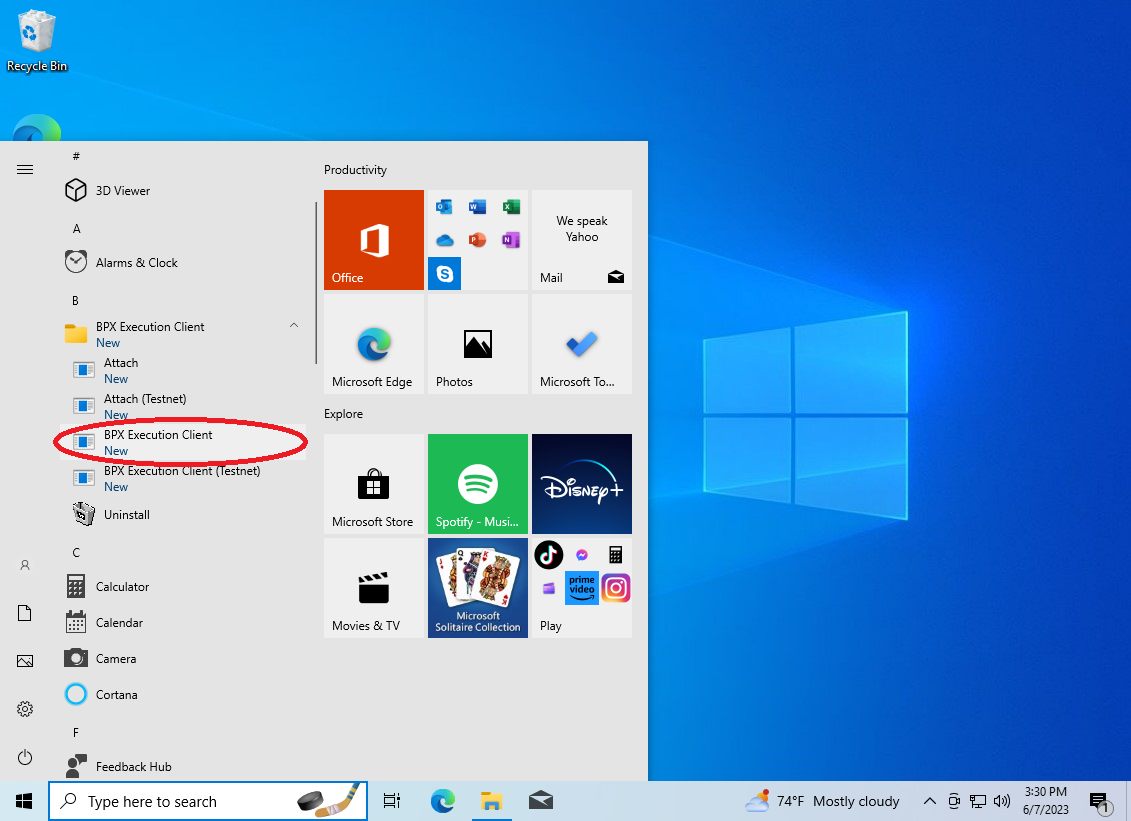](https://docs.bpxchain.cc/uploads/images/gallery/2023-06/pLXELv47WTfEBO7s-virtualbox-win10-07-06-2023-15-30-15.png) 5\. Allow the Windows Firewall to open the execution client port. The execution client will start, and you should see its console window. [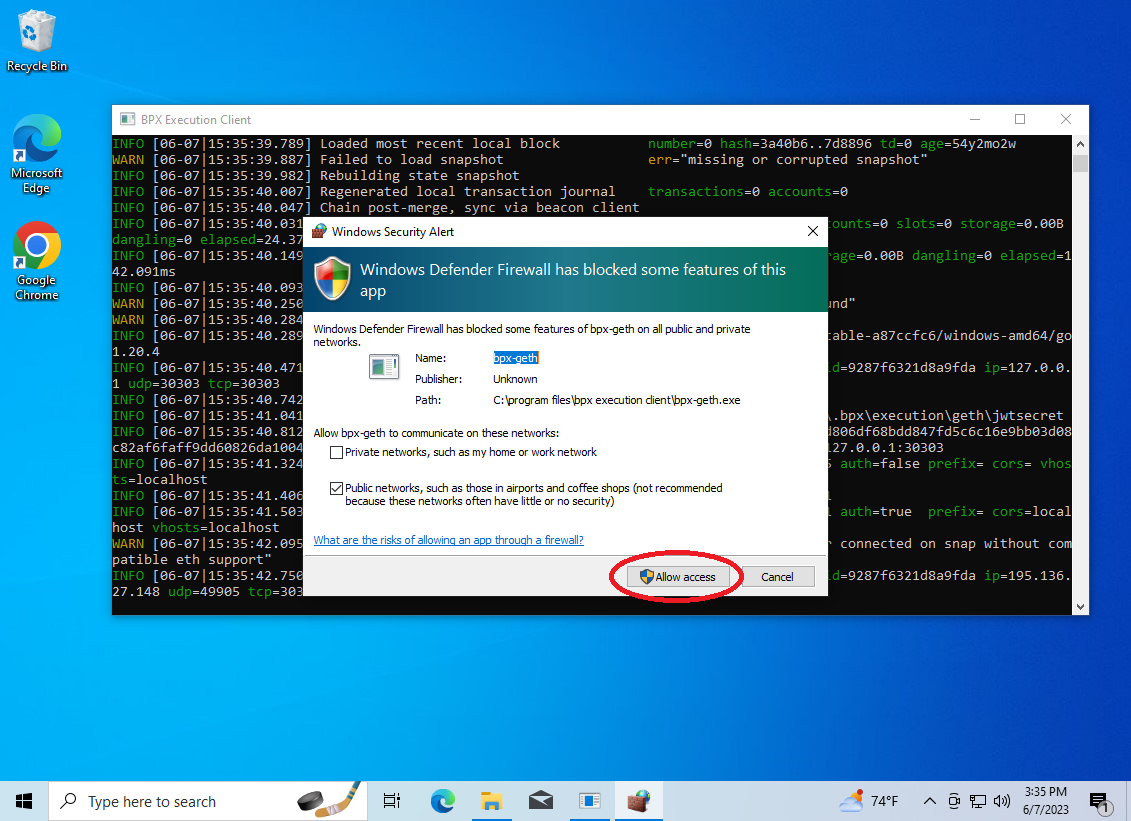](https://docs.bpxchain.cc/uploads/images/gallery/2023-06/ZVmu1FPViOP4IdOm-virtualbox-win10-07-06-2023-15-35-47.png) [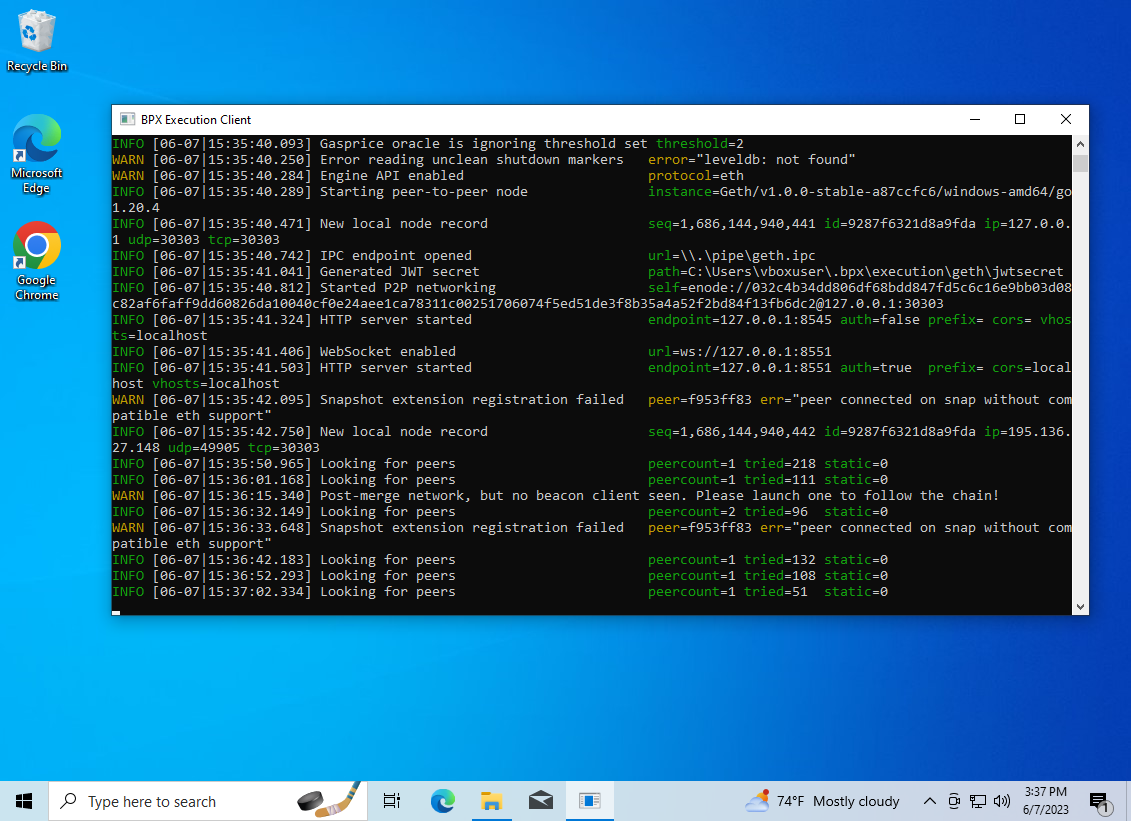](https://docs.bpxchain.cc/uploads/images/gallery/2023-06/SQw66lQAin12lgQ0-virtualbox-win10-07-06-2023-15-35-59.png) 6\. Now run the **Beacon Client** installer. Navigate through the Microsoft Defender pop-ups as before. 7\. Accept the license agreement and proceed through the subsequent installation steps. [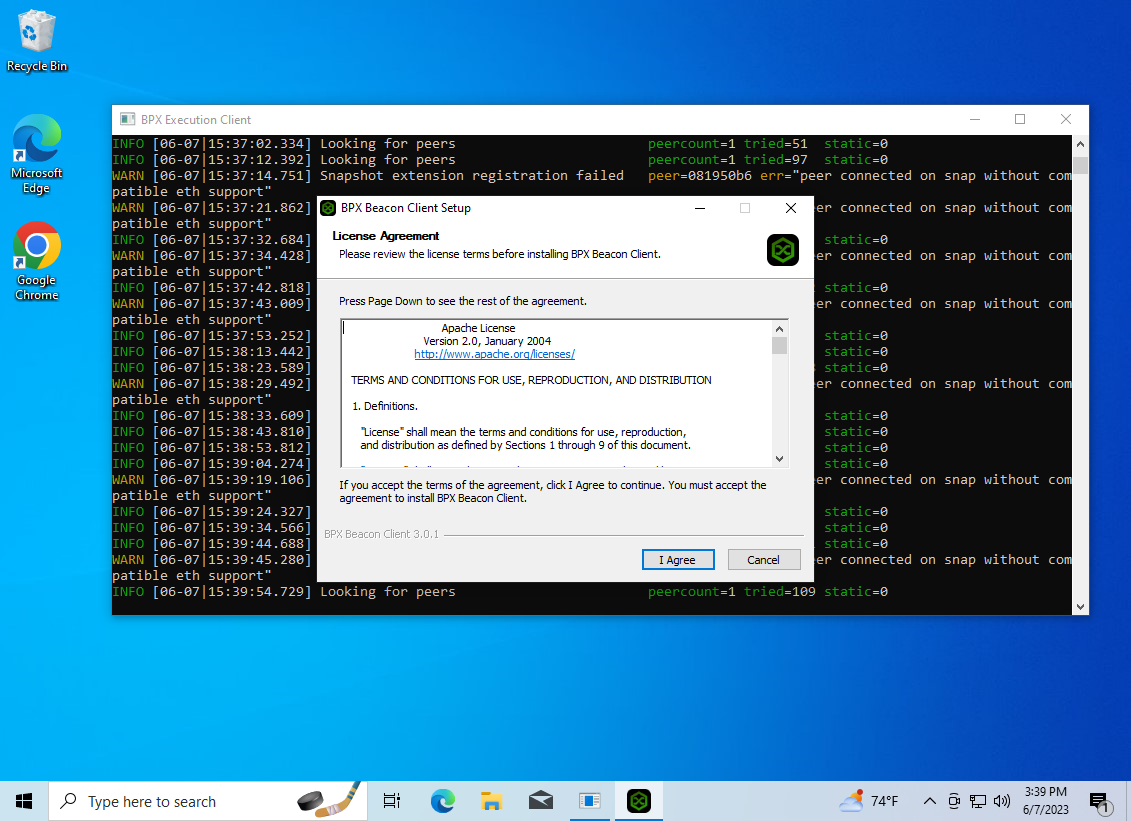](https://docs.bpxchain.cc/uploads/images/gallery/2023-06/1LJztC6ZHwoBADjl-virtualbox-win10-07-06-2023-15-39-55.png) [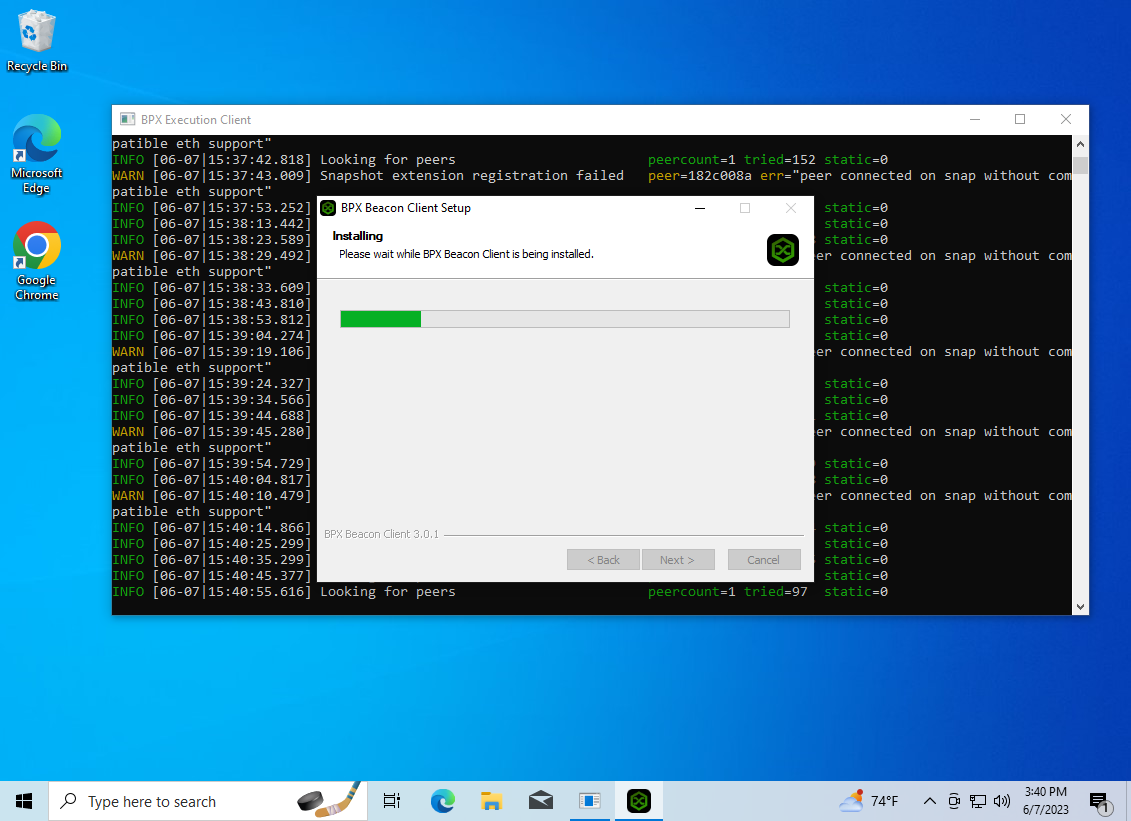](https://docs.bpxchain.cc/uploads/images/gallery/2023-06/DFloLvXOfAUQY3Wa-virtualbox-win10-07-06-2023-15-41-00.png) 8\. Once the installation is complete, click the "**Get Started**" button. [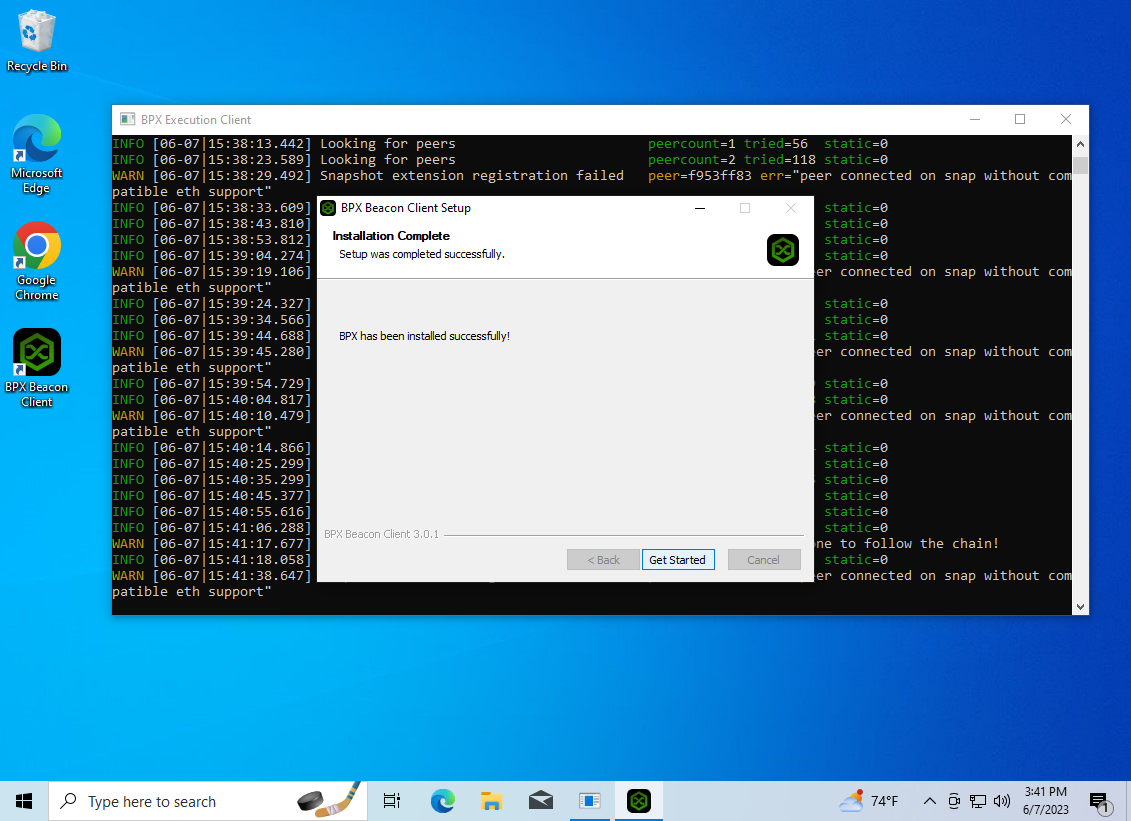](https://docs.bpxchain.cc/uploads/images/gallery/2023-06/ZTODY9NcBSxIdlh8-virtualbox-win10-07-06-2023-15-41-44.png) 9\. Allow to open the required port as before. [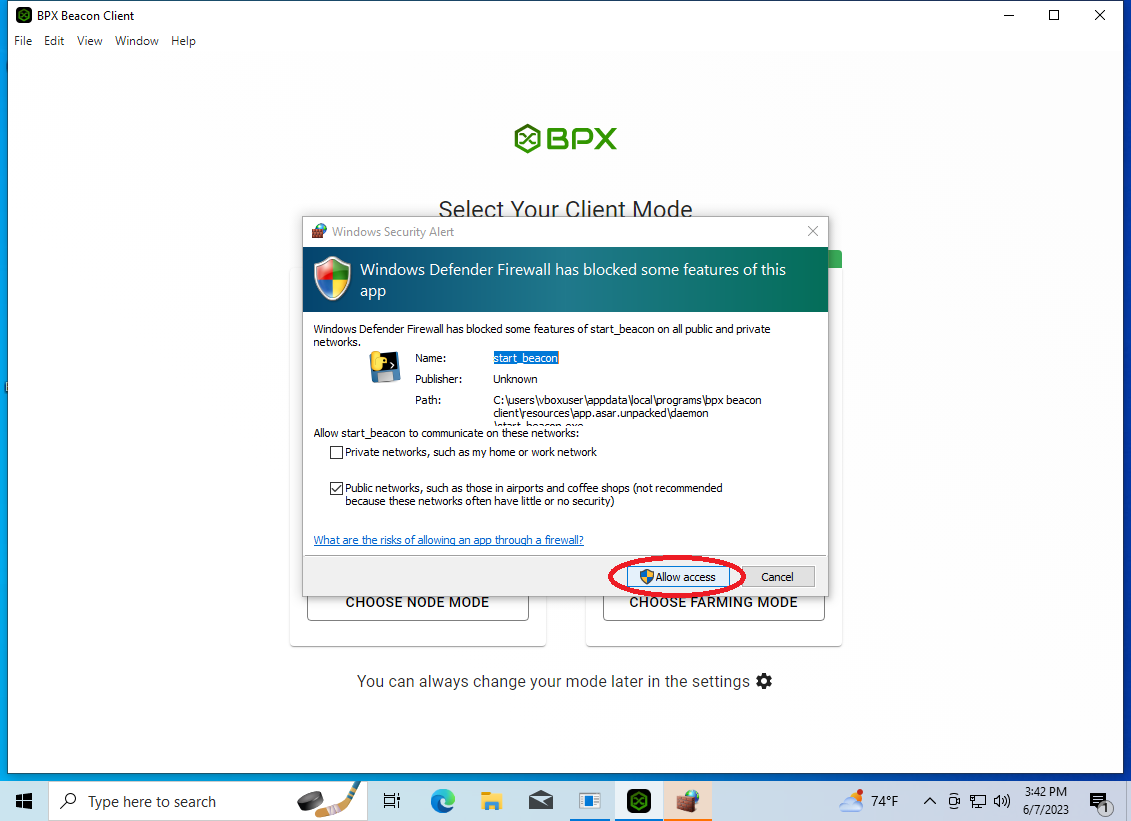](https://docs.bpxchain.cc/uploads/images/gallery/2023-06/SNMKudoFWLv2hnvo-virtualbox-win10-07-06-2023-15-42-57.png) 10\. Beacon Client GUI will be launched. Select the **Node** mode. [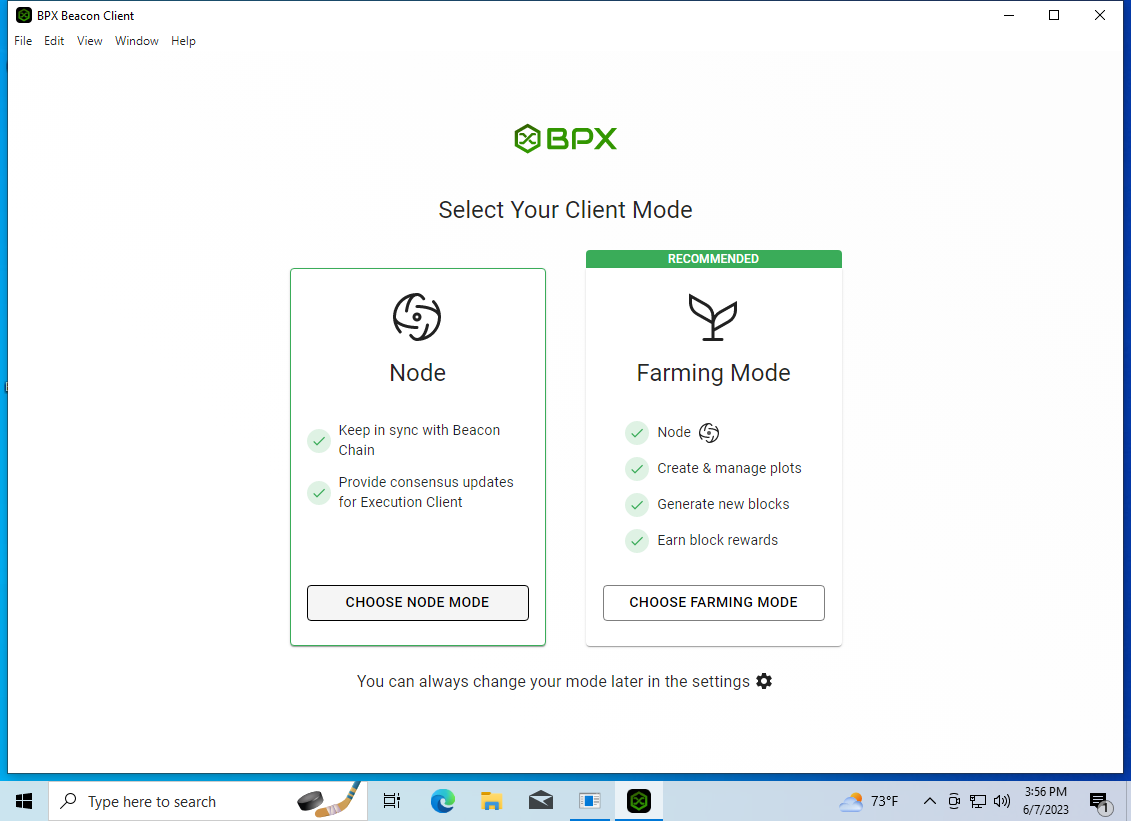](https://docs.bpxchain.cc/uploads/images/gallery/2023-06/dwjACt1J8NX0bt5Q-virtualbox-win10-07-06-2023-15-56-13.png) 11\. At this point, both clients will begin synchronizing with the network. This process may take several hours or even days. [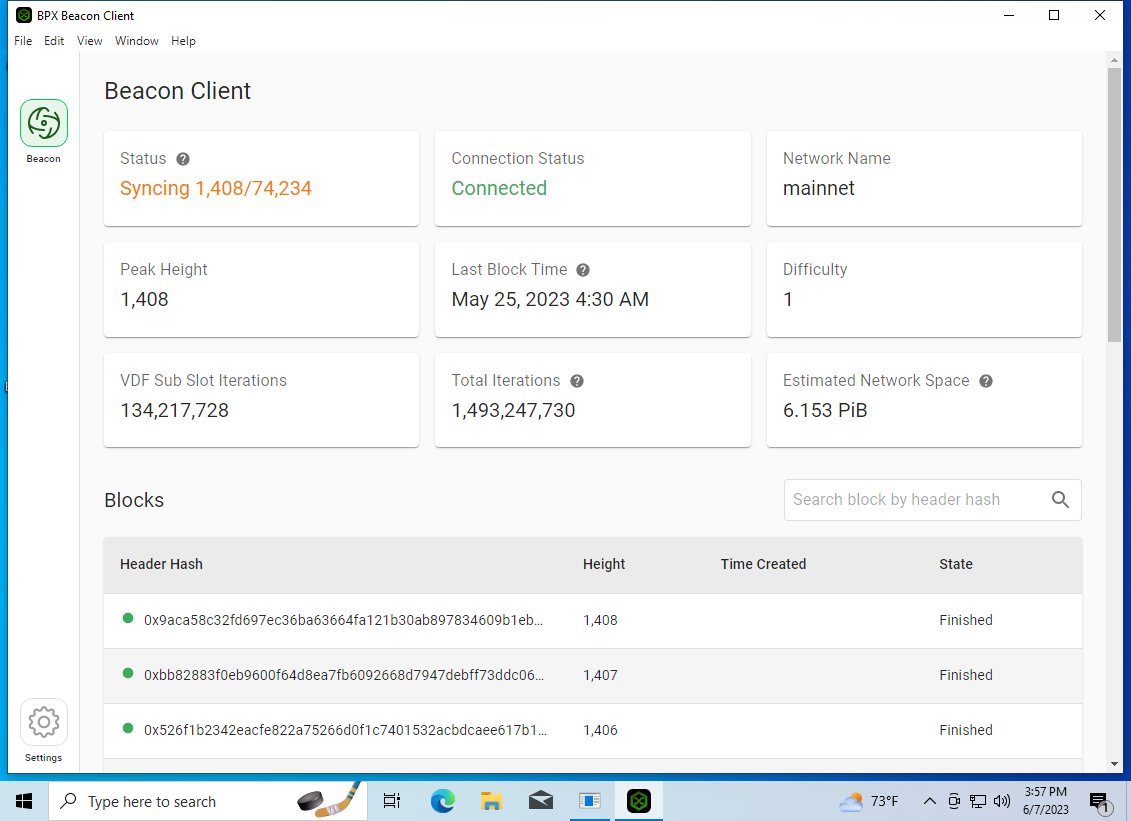](https://docs.bpxchain.cc/uploads/images/gallery/2023-06/eEVgdBV1HbLI7WLQ-virtualbox-win10-07-06-2023-15-57-39.png) [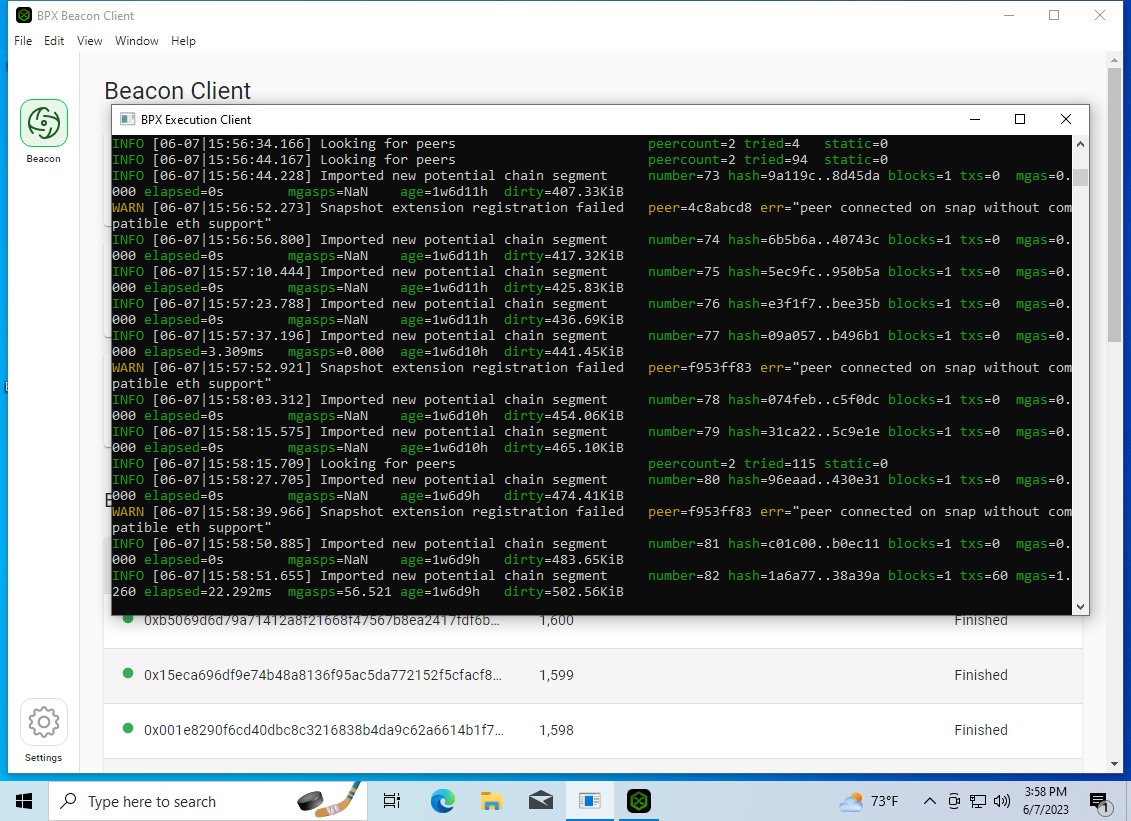](https://docs.bpxchain.cc/uploads/images/gallery/2023-06/UjXUtsLrGpJxNjxD-virtualbox-win10-07-06-2023-15-58-58.png) 12\. Once synchronization is complete, your full node will be ready to operate. [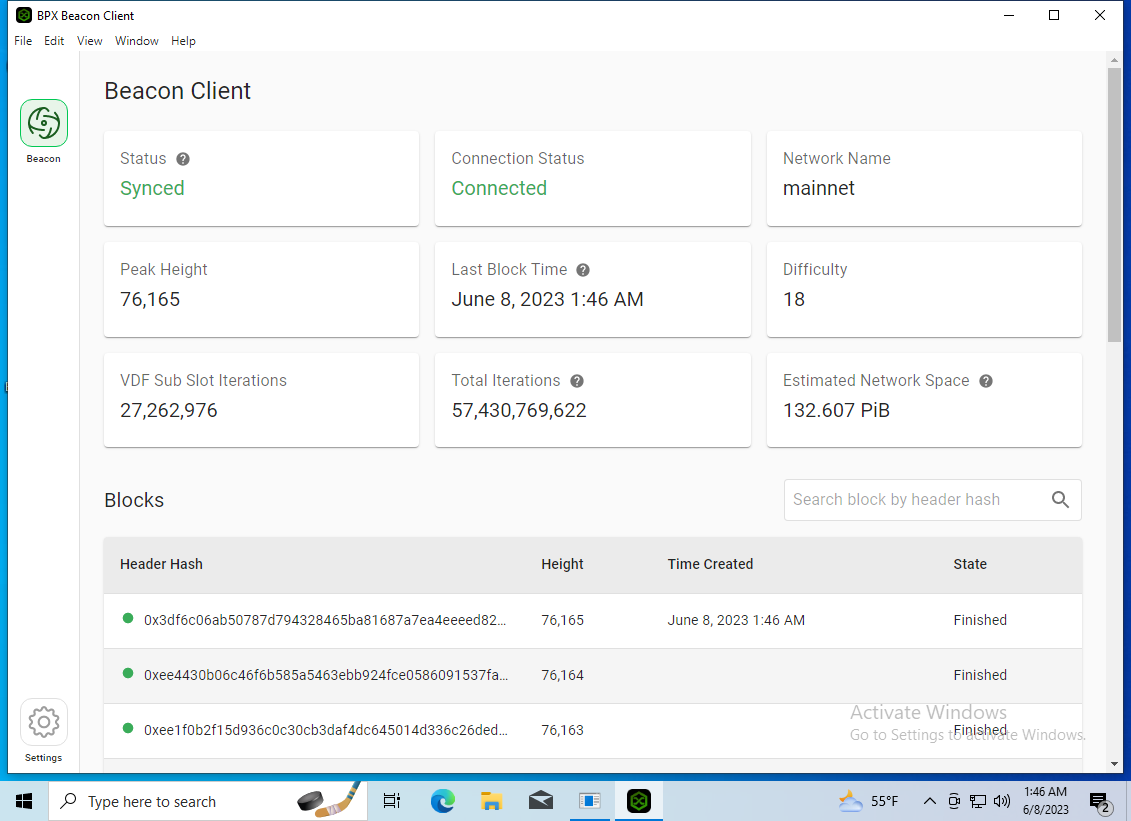](https://docs.bpxchain.cc/uploads/images/gallery/2023-06/dqJne2CC2hozzwbB-virtualbox-win10-08-06-2023-01-46-36.png)Never stop the **Execution Client** by closing the console window. Instead, use the **Control + C** shortcut and wait for the client to save all data to disk and shut down gracefully. [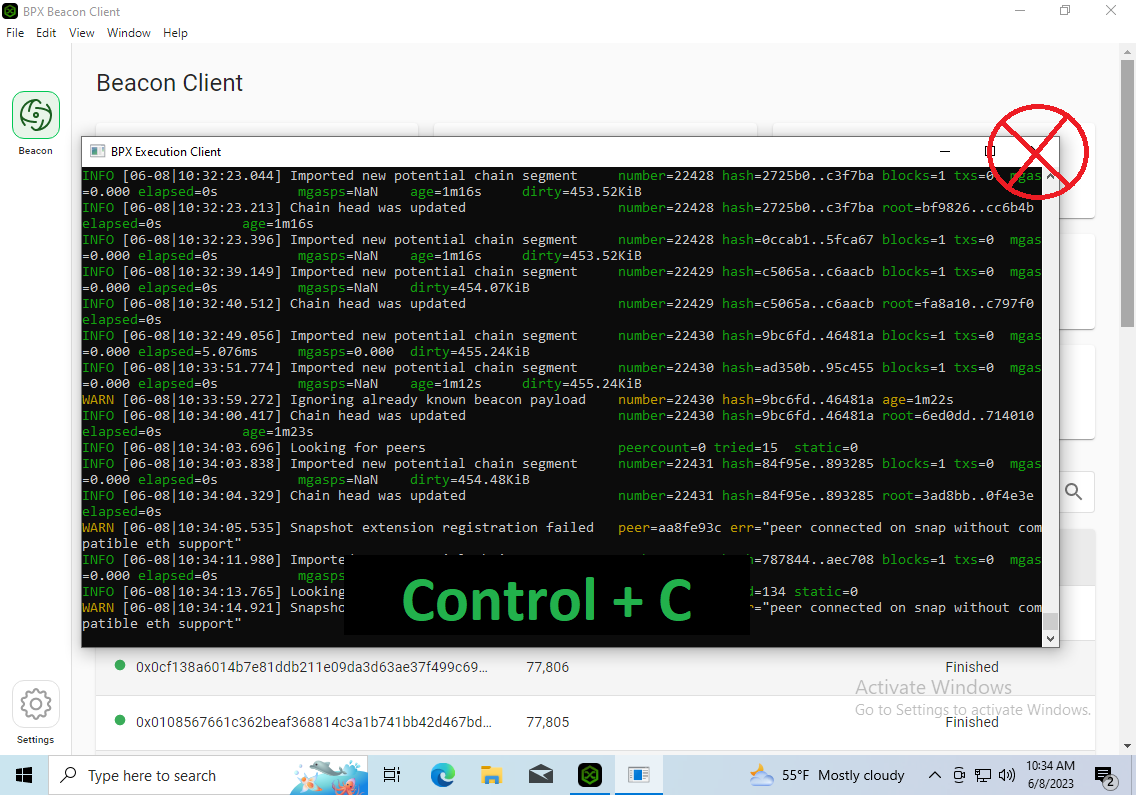](https://docs.bpxchain.cc/uploads/images/gallery/2023-06/wq6Ezk8ksgqEiqJN-virtualbox-win10-08-06-2023-10-34-18.png)
# Installing and running BPX full node on Debian / Ubuntu 1. Log in as root. Use **wget** to download the DEB packages for the latest releases of the **[Execution Client](https://github.com/bpx-chain/bpx-execution-client/releases)** and **[Beacon Client](https://github.com/bpx-chain/bpx-beacon-client/releases)**. Replace **X.X.X** with the latest versions tags. ```bash wget "https://github.com/bpx-chain/bpx-execution-client/releases/download/X.X.X/bpx-execution-client_X.X.X+stable_amd64.deb" wget "https://github.com/bpx-chain/bpx-beacon-client/releases/download/X.X.X/bpx-beacon-client-cli_X.X.X-1_amd64.deb" ``` [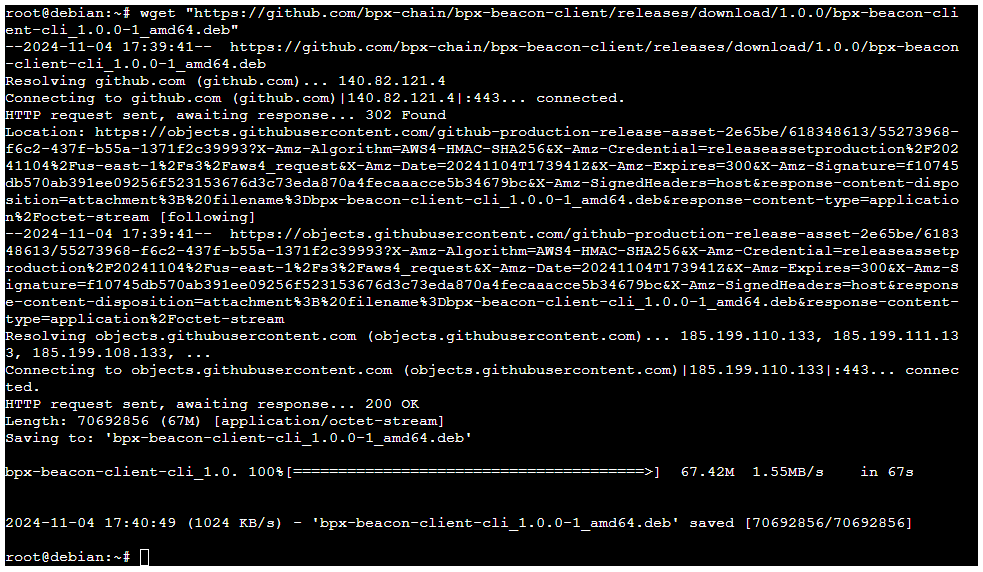](https://docs.bpxchain.cc/uploads/images/gallery/2024-11/EY3NV23TsTGeZY2q-node-debian1.png) 2\. Install both packages. Replace **X.X.X** with the downloaded versions tags. ```bash dpkg -i bpx-execution-client_X.X.X+stable_amd64.deb bpx-beacon-client-cli_X.X.X-1_amd64.deb ``` [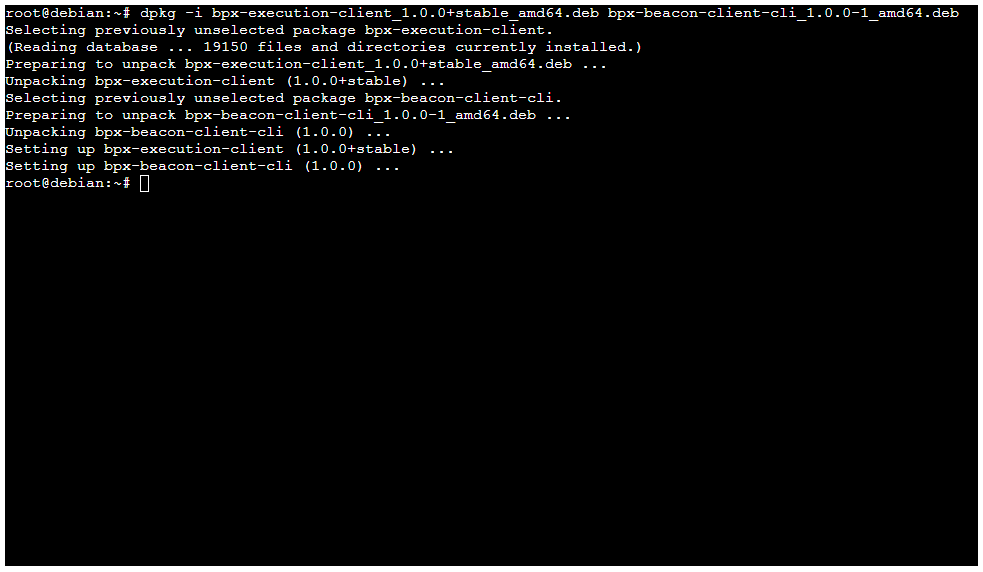](https://docs.bpxchain.cc/uploads/images/gallery/2024-11/oqqS5qC8rwBHvbxv-node-debian2.png) 3\. Create a new user account for BPX Chain services. ```bash adduser bpxchain ``` Set a password for the new account. You can leave the additional information fields empty. [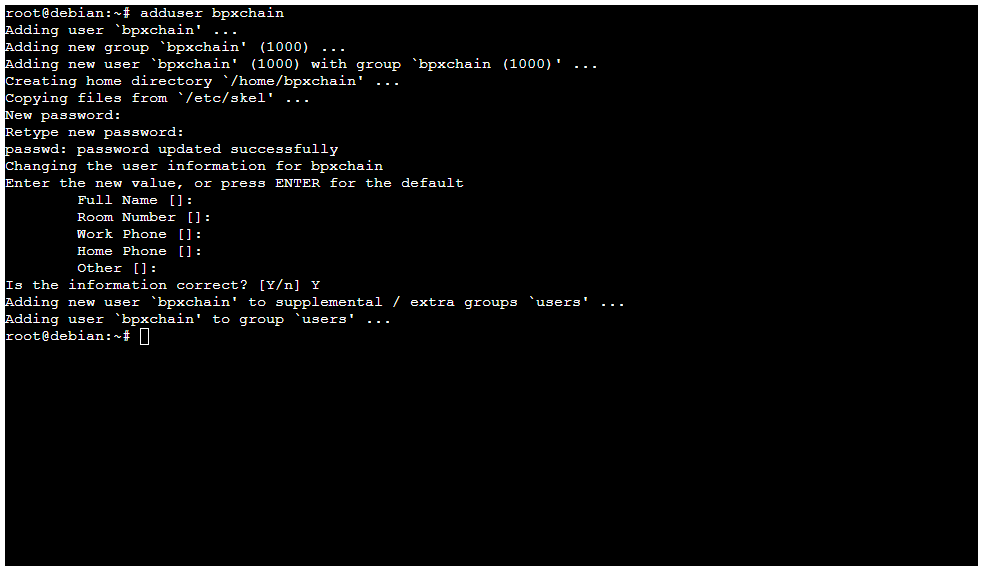](https://docs.bpxchain.cc/uploads/images/gallery/2024-11/9kK8etHBytK6aq1t-node-debian3.png) 4\. Switch to the newly created account. ```bash su - bpxchain ``` 5\. Initialize the Beacon Client configuration. ```bash bpx init ``` [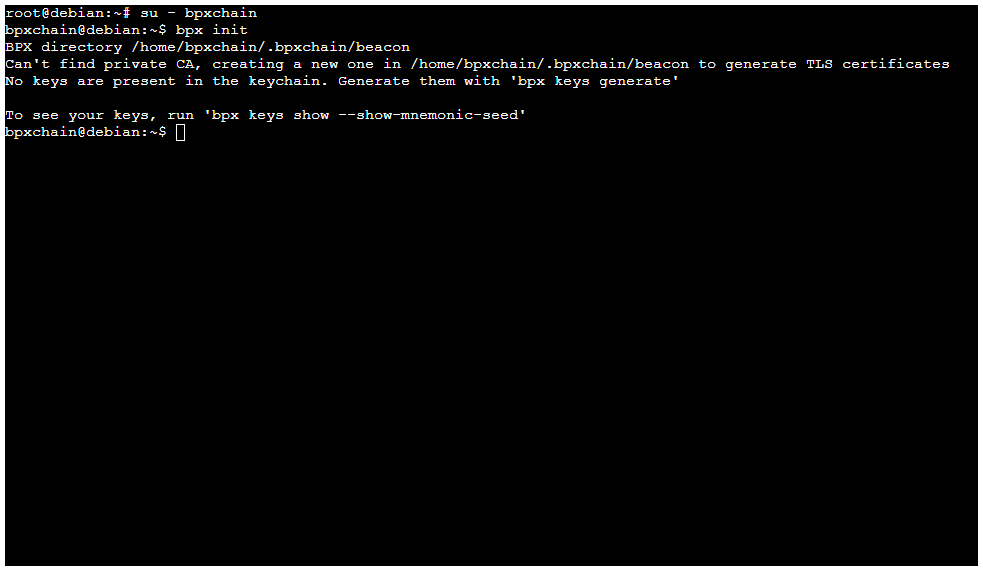](https://docs.bpxchain.cc/uploads/images/gallery/2024-11/U6aLVTRKvaVlB1Zj-node-debian4.png) 6\. Press **Control + D** to log out and return to the root console. 7\. Create a configuration file for the BPX Execution Client **systemd** service using any text editor, for example **nano**: ```bash nano /etc/systemd/system/bpx-execution.service ``` Insert the following file content: ``` [Unit] Description=BPX Execution Client [Service] Type=simple User=bpxchain ExecStart=bpx-geth --http Restart=always [Install] WantedBy=multi-user.target ``` Save the file by pressing **Control + O** and close the editor with **Control + X**. 8\. Follow the same procedure to create a configuration file for the Beacon Client service: ```bash nano /etc/systemd/system/bpx-beacon.service ``` Insert the following file content: ``` [Unit] Description=BPX Beacon Client [Service] Type=forking User=bpxchain ExecStart=bpx start beacon ExecStop=bpx stop -d all Restart=always [Install] WantedBy=multi-user.target ``` 9\. Reload the system services configuration. ```bash systemctl daemon-reload ``` 10\. Enable automatic startup of the BPX Chain services. ```bash systemctl enable bpx-execution systemctl enable bpx-beacon ``` 11\. Start both services. ```bash systemctl start bpx-execution systemctl start bpx-beacon ``` [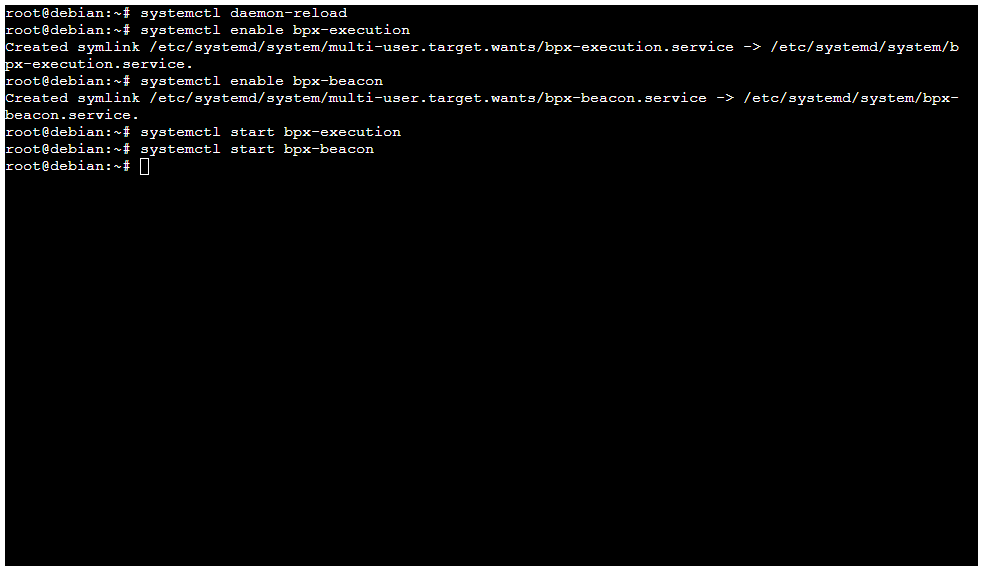](https://docs.bpxchain.cc/uploads/images/gallery/2024-11/auUAk0Tom7bUR6qS-node-debian5.png) 12\. Your full node has just started and will begin the initial synchronization of the blockchain. This process may take several hours or even days. Use the following command to watch the sync status. ```bash su - bpxchain watch -n 10 bpx show -s ``` [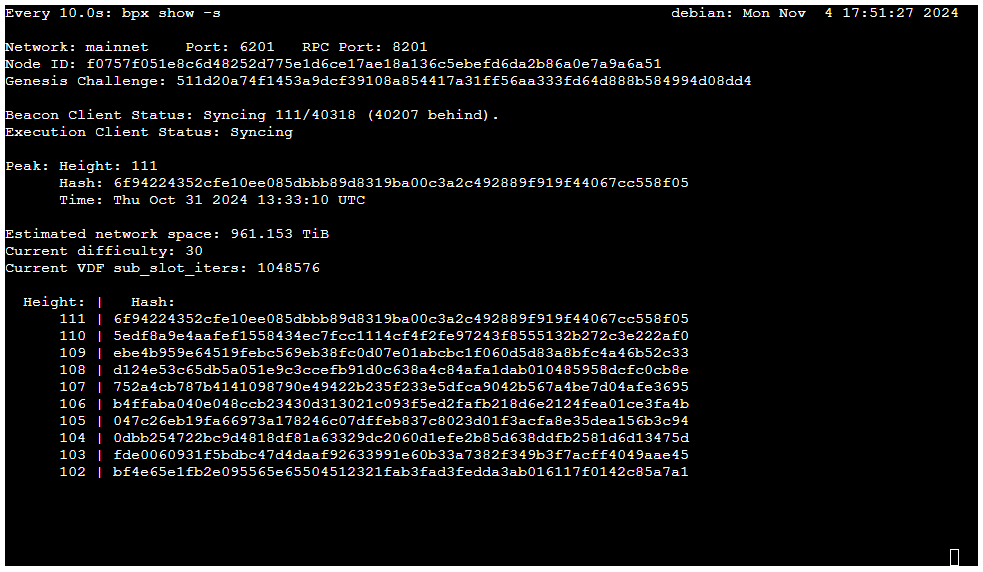](https://docs.bpxchain.cc/uploads/images/gallery/2024-11/4CV3cz4TTOK5JIXC-node-debian6.png)